TL;DR
Flushing DNS clears the DNS records your device has saved locally, so it looks up fresh ones the next time you visit a site or hostname. It’s a common first step when a site or hostname still loads an old address. This guide covers when flushing helps, when it won’t, and what to check next. Flushing DNS clears the locally cached DNS records on a device so it pulls the newest records from the authoritative DNS server on the next lookup.
What Does Flushing DNS Do?
Flushing DNS deletes the name-to-address lookups your operating system has saved, so your device has to ask again. It doesn’t change any DNS records. That saved list is your DNS cache.
What gets cleared, and what doesn’t
A flush clears the operating system’s resolver cache, such as the recent hostnames, the IP addresses they returned, and failed lookups remembered as “doesn’t exist.”
It also leaves everything else alone. This includes your:
- browser’s DNS cache
- router’s cache
- ISP’s resolver
- hosts file
- browsing history
Without a flush, each record stays until its time to live (TTL) runs out. Windows caps that at 24 hours by default, and most records expire much sooner.
What happens on the next lookup
After a flush, the next request for a hostname has no saved answer. Therefore, your device asks its configured DNS resolver, which is usually your router or your ISP’s DNS server.
If the resolver has a copy, it answers right away. If not, it asks the authoritative server, which holds the real record, and passes the answer back.
Your device only gets a fresh answer if every step in between has one too. That’s why a flush sometimes does nothing.
When Should You Flush DNS?
Flush DNS when you suspect your device is holding an outdated answer, which is usually because a site or hostname changed its IP address.
Situations where flushing usually helps
| Situation | Does flushing usually help? | Why |
|---|---|---|
| A site or hostname moved to a new IP | Yes | Your device may still have the old IP address cached. Flushing forces a fresh lookup so it finds the new one. |
| A record was just changed | Yes | Your device keeps the old answer until its TTL runs out. Flushing clears your local copy, but upstream resolvers may still hold the old value until their TTL expires too. |
| A previously failing site was fixed | Yes | Failed lookups are cached as well (negative caching). Flushing removes the stored failure so your device tries again. |
| DNS server settings changed | Sometimes | New lookups use the new server, but answers already cached from the old server stick around. Flushing makes sure every answer comes from the new server. |
| A VPN was added or removed | Sometimes | VPNs often use their own DNS servers, including internal-only names. Cached answers from the other network can point to the wrong place. |
| The connection is working normally | No flush needed | There’s nothing stale to clear. Flushing just empties the cache, so the next few lookups are a little slower while it refills. |
When you don’t need to flush
Skip the flush when:
- Every site loads normally
- The problem affects every site, which points to your connection, not DNS
- The site shows an error page from its own server, which means DNS already found it
- The record you’re waiting on hasn’t actually been updated yet
Is Flushing DNS Safe?
Yes. Flushing DNS is safe on any device. The only side effect is that the next visit to each site takes a few extra milliseconds.
Most importantly, it won’t delete files, log you out of sites, or change your settings. One thing to note is that security claims are often overstated. For example, a flush can clear a tampered entry, but it doesn’t prevent future spoofing. It does little for privacy either, because your DNS provider still sees your lookups.
When Flushing DNS Won’t Help (and What to Check Next)
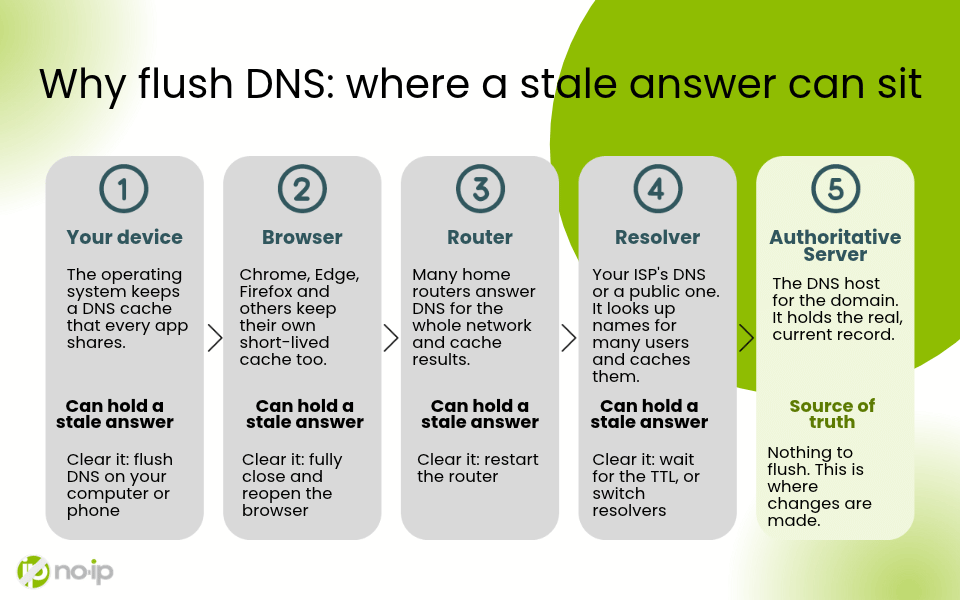
A flush clears only one of several places a stale answer can sit between your device and the authoritative server. Knowing when to flush DNS also means knowing where else to look.
Your browser or an open connection is still using the old address
Browsers like Chrome keep their own DNS cache and reuse open connections. Closing and reopening the browser clears both.
Your router or network is holding the old answer
Many routers cache DNS answers for every device on the network. If the router still has the old record, your flushed device gets it right back. Restarting the router clears it.
Your ISP or a public resolver hasn’t refreshed yet
Your ISP’s resolver, or a public one, keeps each record until its TTL expires. You can’t flush someone else’s resolver. If a record had a long TTL before the change, you wait it out.
A hosts file, VPN, or encrypted DNS setting is overriding the lookup
A hosts file entry pins a hostname to a fixed address and skips DNS. A VPN can route lookups through its own resolver, and encrypted DNS (DNS over HTTPS) in your browser can use a different provider than your system. Any of these can keep returning the old address.
The record itself hasn’t changed
If the authoritative server still has the old IP, no flush will help. This is common with Dynamic DNS hostnames, covered next.
How to check what the authoritative server is returning
Query the authoritative server directly, skipping every cache. Tools like nslookup, dig, or an online DNS lookup let you ask a specific nameserver, such as ns1.no-ip.com for a No-IP hostname. A new IP means a cache is the problem and an old IP means the record needs fixing first.
Waiting on a DDNS Update or DNS Record Change?
Take a look at a common example: A hostname’s IP changed through the Dynamic Update Client (DUC) or a manual update, but your device still lands on the old address. Confirm the new IP has reached No-IP before you flush.
How long does a DDNS update take to show up?
There are two timers that determine it: How quickly the update reaches No-IP, and how long resolvers keep the old answer. The DUC checks your IP at a set interval, which can’t be set faster than a few minutes. A manual update in your account takes effect at No-IP as soon as you save it.
Once that step is completed, cached copies expire based on the hostname’s TTL. No-IP hostnames use a default TTL of 60 seconds, so most resolvers pick up the change within minutes.
What to Check If the Old IP Still Shows Up
Log in to your No-IP account and check the hostname’s current IP in your Dynamic DNS hostname list. Then:
- Compare that IP to your network’s current public IP.
- If they don’t match, check that the DUC is running and signed in, or update the hostname manually.
- If they match, query ns1.no-ip.com directly to confirm the authoritative answer.
- If the authoritative answer is correct, then flush your device and restart your browser.
A flush fixes it when the record at No-IP is correct, and only your device is behind. It doesn’t help when the DUC stopped updating, or your router’s DDNS client reports the wrong IP.
Dynamic DNS keeps a hostname pointed at a changing IP, and Managed DNS lets you set TTLs per record across full domains.
Ready to flush? Step-by-step guides for Windows and Mac
Ready to flush? Follow our step-by-step guides for Windows and Mac: How to Flush Your Windows DNS Cache and How Do I Flush Mac DNS Cache?
Frequently Asked Questions
Does flushing DNS delete history?
No. Flushing DNS clears your device’s saved hostname lookups, not your browsing history. Your history, bookmarks, cookies, and saved passwords stay where they are. A flush only makes your device look up site addresses again. To clear history, use your browser’s own settings.
Does flushing DNS increase internet speed?
No. A flush doesn’t make your connection faster. The next visit to each site can be slightly slower, because your device has to look up each address again. It only seems faster when a stale record was sending you to a broken or slow address.
Should I restart after flushing DNS?
You don’t need to restart your computer. Restarting your browser is a good idea, because browsers keep their own DNS cache and open connections. If the old address still shows up, restart your router too, since many routers cache DNS answers for every device on the network.
Why is my site still showing the old IP after flushing?
The old address is saved somewhere else. Your browser, router, ISP’s resolver, a hosts file, or a VPN can all return the old answer. The record itself may also still be wrong at the authoritative server. Query the authoritative nameserver directly to find out which one it is.
How long after a DDNS update should my hostname point to the new IP?
Usually within a few minutes. The DUC checks your IP at intervals of 5 minutes or longer, and No-IP updates the record as soon as the change arrives. Resolvers then pick up the new IP once the hostname’s TTL expires. A manual update in your account skips the DUC wait.
How often should I flush DNS?
You don’t need to flush DNS on a regular schedule. Your device clears out old records on its own as they expire. Flushing is a troubleshooting step, so it’s only worth doing when something isn’t working right, like a website that won’t load, loads an outdated version, or points to the wrong place.
Conclusion
Flush DNS when you have a reason: a site moved, a record changed, or a fixed site still won’t load. If it doesn’t work, the stale answer is sitting somewhere else, or the record itself hasn’t changed.
Flushing DNS clears one cache, so use it as a first step, not the only one.