TL;DR
What it is: Software that lets you view and control your home PC from any other device over the internet.
Two key blockers to know:
- Dynamic IP: Your home IP address changes frequently, breaking saved connections
- CGNAT: Your ISP shares one public IP across many users — port forwarding cannot work. Check by comparing your router’s WAN IP to What Is My IP? See Your Location, ISP & Network Details; if they differ, you’re behind CGNAT
Three setup paths:
| Situation | Solution | Works behind CGNAT |
|---|---|---|
| Any OS, fastest setup | Chrome Remote Desktop or AnyDesk | Yes |
| Windows Pro, real public IP | No-IP DDNS + RDP | No |
| CGNAT or no router access | No-IP Public Tunnels | Yes |
Key terms:
- Host: The PC you want to control (must stay powered on)
- Client: The device you connect from
- RDP: Windows built-in remote desktop (Pro/Enterprise only)
- DDNS: Maps a fixed hostname to your changing IP
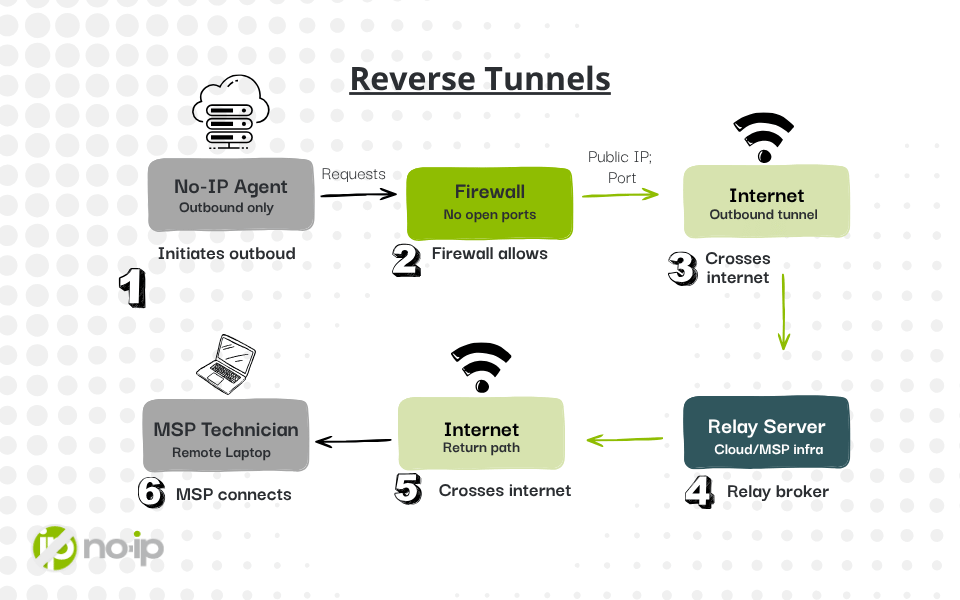
- Public Tunnel: Your PC connects outbound to a relay server, and no open ports are required
Security rule: Never expose port 3389 (RDP) directly to the internet. Tunnel-based tools (Options 2 and 4) are safer because they leave no open ports on your machine.
Recommended for most home users in 2026: No-IP Public Tunnels — works on any network, requires no router configuration, and follows a Zero Trust model.
You’re at a coffee shop, at a client’s office, or halfway across the country, and the file you need is sitting on your home PC. Or maybe your elderly parent just called because something’s broken on their laptop and you’d rather fix it remotely rather than painstakingly talk them through it. Either way, the solution is remote access to your personal computer.
Remote access allows you to view and control your PC from any other device over the internet, as though you were sitting right in front of it. Setting up remote access may sound straightforward, and it can be, but there are two common pitfalls that disrupt the connection: Dynamic IP addresses and CGNAT. This guide covers three practical paths that actually work in 2026, including situations where traditional port forwarding doesn’t fit the configuration.
How Remote Access Actually Works
The Two Sides — Host and Client
Every remote access setup involves two roles. The host is the machine you want to control, such as your personal desktop, home office PC, or the computer sitting in your spare room. It needs to stay powered on, connected to the internet, and configured to accept incoming connections. The client is whatever device you’re using to connect, like a laptop at a hotel, your phone, or a work computer. in other words, the client initiates the session and the host receives it.
Under the hood, the two sides talk over a protocol. For example, Remote Desktop Protocol (RDP) is Microsoft’s built-in solution, but limited to Pro/Enterprise editions. Virtual Network Computing (VNC) is platform-agnostic and widely used in third-party tools. Modern relay-based tools, like No-IP Public Tunnels, use their own encrypted tunnel protocols on top of these.
Why Connecting Directly Rarely Works — Dynamic IPs and CGNAT
The novice approach is to look up your home IP address, save it, and connect directly. However, this works exactly once. Here’s why it breaks:
Dynamic IPs: Residential ISPs rarely provide a static public IP. Your IP address is subject to change, sometimes daily or after every reboot of your modem. A connection saved with yesterday’s IP just times out today with no helpful error message.
CGNAT: This one can be harder to detect. CGNAT (Carrier-Grade NAT) means your ISP shares one public IP address across many customers simultaneously. Therefore, traditional remote access solutions, such as port forwarding, cannot work. The public IP isn’t yours alone.
How to check if you’re behind CGNAT: Log into your router’s admin panel and note the WAN IP address. Then, visit whatismyip.com from a browser on that same network. If the two addresses are different, you’re behind CGNAT.
CGNAT is becoming increasingly common, especially on mobile broadband, cable, and budget ISPs. If you’re affected, traditional port forwarding is off the table. For a deeper explanation of why, see our guide on how reverse tunnels bypass CGNAT.
Your Remote Access Options — What Actually Works in 2026
Option 1 — Windows Remote Desktop (RDP)
Windows Remote Desktop is built into the OS and is free. However, it comes with meaningful caveats. It’s only available on Windows Pro and Enterprise editions. Windows Home does not include the ability to host RDP sessions.
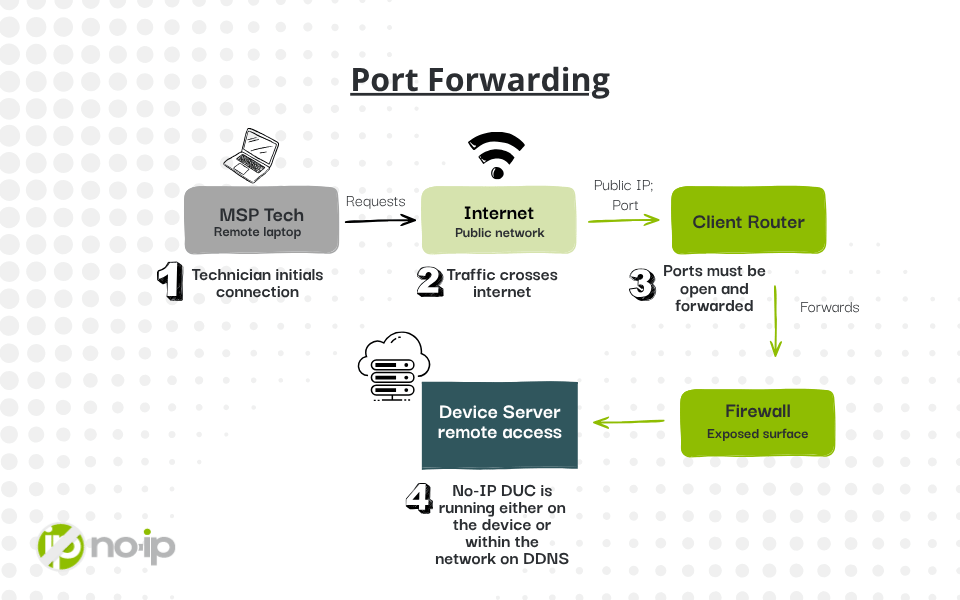
Beyond the edition restriction, RDP requires you to open port 3389 to the internet, which means you need both a real public IP (no CGNAT) and router access to configure port forwarding. Port 3389 is also one of the most actively scanned ports on the Internet. Exposed RDP endpoints are attacked constantly. Whoever is managing the port forwarding needs to use extreme caution or have extensive experience.
⚠️ Windows Home users: Unfortunately, RDP hosting is not available on your edition. Skip to Option 2 or Option 4.
For full Windows version requirements and RDP configuration, see Microsoft’s official remote access documentation.
Option 2 — Easy Relay Tools (Work Behind CGNAT, No Router Access Needed)
If you want something running in under ten minutes that works on any network, including behind CGNAT, relay-based tools are the path of least resistance. Instead of routing traffic directly to your machine, these services proxy the connection through their own servers. You install an agent on the host, authenticate on the client, and connect. No port forwarding, no router configuration.
Chrome Remote Desktop (remotedesktop.google.com). It installs as a browser extension, uses your Google account for authentication, and works on Windows, macOS, and Linux. Latency is acceptable for file work and light tasks.
AnyDesk is fast and has a lightweight client. It’s free for personal use, though note that AnyDesk experienced a significant breach in early 2024. Ensure you’re running a fully updated version and have rotated any passwords used with the service.
TeamViewer is reliable and full-featured, but aggressive at detecting “commercial use” on free accounts. In other words, if you’re helping a family member occasionally, then you shouldn’t experience any problems. However, daily use for work will likely trigger restrictions.
RustDesk is the open-source alternative. Ideal if you’re privacy-conscious or running a home lab.
| Tool | Ease of Setup | Works Behind CGNAT | Port Forwarding Required | Cost |
|---|---|---|---|---|
| Chrome Remote Desktop | Very easy | ✓ Yes | Not required | Free |
| AnyDesk | Easy | ✓ Yes | Not required | Free (personal) |
| TeamViewer | Easy | ✓ Yes | Not required | Free (personal, limited) |
| RustDesk | Moderate | ✓ Yes | Not required | Free / Self-hosted |
Option 3 — No-IP DDNS + Remote Desktop (Real Public IP Only)
If you’ve confirmed you have a real public IP (your router WAN and What Is My IP? See Your Location, ISP & Network Details agree), your main problem is probably that the address keeps changing. That’s exactly what Dynamic DNS solves.
No-IP’s free DDNS service gives you a hostname that always points to your current public IP. When you install the DUC (Dynamic Update Client) on your host PC, it quietly updates the DNS record whenever your IP changes. You then connect via the hostname instead of an IP address, so saved connections never break.
Pair this with Windows RDP and port forwarding on your router, and you have a solid, self-managed remote access setup as long as you have a real public IP. However, if you’re behind CGNAT, DDNS alone won’t fix it, but the next option will.
Option 4 — No-IP Public Tunnels (Recommended for Most Home Users)
This is the approach we recommend for the majority of home users in 2026, because it works regardless of your network configuration, including behind CGNAT, on a shared IP, or without any router access at all.
The key difference between Public Tunnels and port forwarding is the direction of the connection. With traditional RDP, your router needs to accept an incoming connection from the internet and route it to your PC, which CGNAT blocks. With No-IP Public Tunnels, your PC reaches out to a relay server, establishing a persistent outbound tunnel. When you connect remotely, the relay bridges the session. Therefore, no inbound port ever needs to be opened.
There are no listening ports on your machine, so it’s invisible to port scanners. And because your PC initiates the tunnel rather than accepting it, the Zero Trust principle applies. Nothing can reach your machine unless the tunnel is active and authenticated.
Which Method Is Right for You?
The table below maps your situation to the best approach.
| Your Situation | Recommended Method | Works Behind CGNAT | Port Forwarding |
|---|---|---|---|
| Quickest setup, any OS | Chrome Remote Desktop or AnyDesk | ✓ Yes | Not required |
| Windows Pro, local network / VPN | Windows RDP | ✗ No | Required |
| Real public IP, IP keeps changing | No-IP DDNS + RDP | ✗ No | Required |
| Behind CGNAT / can’t touch router | No-IP Public Tunnels | ✓ Yes | Not required |
| Multiple machines/home lab | No-IP Tunnels + DDNS | ✓ Yes | Not required |
Is Remote Access Safe?
Remote access is safe when set up correctly, and risky when it isn’t. The specific risk to name out loud is port 3389. Exposed RDP endpoints are under constant automated attacks. In late 2025, the FBI’s Operation Masquerade dismantled a major ransomware network that had used brute-forced RDP credentials as its primary entry vector. Open port 3389 on a residential IP, and risk scanners will find it within hours.
Reverse tunnels (Options 2 and 4) sidestep this entirely. Because no port is open on your machine, there’s nothing for a scanner to find. The tunnel itself is encrypted and authenticated at the relay, not at your PC’s network interface. This is the Zero Trust model in practice: Your machine is unreachable unless it chooses to initiate a connection.
If you are running RDP with port forwarding, the minimum security baseline is non-negotiable.
Remote access security checklist
- Use a strong, unique password. Do not reuse your Windows login password.
- Enable two-factor authentication wherever the tool supports it.
- Never expose port 3389 directly to the internet without a VPN in front of it.
- Configure your PC to auto-lock the screen when a remote session ends.
- Keep remote access software and your OS fully updated
- Disable remote access entirely when you’re not actively using it.
Step-by-Step Setup — 3 Paths for 3 Situations
Path A — Chrome Remote Desktop ✓ Works behind CGNAT ✓ No port forwarding
Best for: any OS, any network, getting up and running in under 10 minutes.
- On the host PC, open Chrome and navigate to remotedesktop.google.com/access.
- Click Set up remote access and install the Chrome Remote Desktop extension when prompted.
- Download and run the host installer that appears after the extension installs.
- Give your computer a name and set a 6-digit PIN (at least). Click Start.
- To connect remotely: on any device, go to remotedesktop.google.com/access, sign in with the same Google account, click your PC’s name, and enter the PIN.
The host PC must stay powered on and connected. Sleep/hibernate will break the connection — adjust your power settings accordingly.
Path B — No-IP DDNS + Windows RDP ✗ Does not work behind CGNAT
Best for: Windows Pro users with a real public IP whose address keeps changing.
- Create a free account at no-ip.com and create a hostname (e.g.
yourname.ddns.net). - Download and install the Dynamic Update Client (DUC) on your host PC. This keeps your hostname pointed at your current IP automatically.
- On the host PC, open Settings → System → Remote Desktop and toggle Enable Remote Desktop on. (Windows Pro only. This setting doesn’t appear on Windows Home.)
- Log into your router and create a port forwarding rule: external port
3389→ internal IP of your host PC, TCP. - To connect: open Remote Desktop Connection on any Windows PC, enter your No-IP hostname as the computer name, and authenticate.
Path C — No-IP Public Tunnels ✓ Works behind CGNAT ✓ No router config needed
Best for: anyone behind CGNAT, on shared housing Wi-Fi, or who simply can’t or won’t touch their router.
- Create a free account at no-ip.com.
- From your No-IP dashboard, navigate to Public Tunnels and create a new tunnel. Select RDP as the tunnel type and note the hostname assigned to you.
- Download and install the No-IP Tunnels agent on your host PC.
- Sign in to the agent with your No-IP credentials. The outbound tunnel will establish automatically.
- Enable Remote Desktop on the host PC (Settings → System → Remote Desktop). No port forwarding rule needed, and the tunnel handles routing.
- To connect remotely: open Remote Desktop Connection, enter your tunnel hostname, and sign in.
Quick Troubleshooting
Q: I can connect from inside my house but not from outside.
You’re almost certainly behind CGNAT or missing a port forwarding rule. Run the CGNAT check: compare your router’s WAN IP to whatismyip.com. If they differ, no amount of port forwarding will fix this. Just switch to Option 2 (Chrome Remote Desktop) or Option 4 (No-IP Public Tunnels).
Q: Connection worked yesterday, but times out today.
Your public IP changed. This is the dynamic IP problem DDNS solves. Install the No-IP Dynamic Update Client, and it will update your hostname automatically whenever your IP changes, and this won’t happen again.
Q: Getting a “This computer can’t connect to the remote computer” error.
Three things to check in order: (1) confirm Remote Desktop is still enabled on the host PC — Windows updates occasionally reset this; (2) verify the host PC is awake and not in sleep mode; (3) confirm your firewall isn’t blocking port 3389. Check Windows Defender Firewall → Allow an app → Remote Desktop.
Q: I don’t see the option to enable Remote Desktop anywhere in Settings.
You’re on Windows Home. RDP hosting is not included in the Home edition. It’s a hard limit, not a configuration issue. Your options are Chrome Remote Desktop, AnyDesk, RustDesk, or No-IP Public Tunnels, all of which work on Windows Home.
Conclusion
Setting up remote access to your personal computer comes down to three paths: grab Chrome Remote Desktop or AnyDesk for a fast, no-friction setup on any network; combine No-IP DDNS with Windows RDP if you’re on Windows Pro with a real public IP; or use No-IP Public Tunnels if you’re behind CGNAT or simply don’t want to touch your router. The tunnels approach works for the widest range of home users in 2026 and happens to be the most secure of the three.
Whichever path fits your situation, the hardest part is usually that first connection. Once you’ve confirmed remote access to your personal computer is working, you’ll wonder how you managed without it. Create your free No-IP account and start accessing your computer from anywhere.